
Every advertiser looks at campaign performance differently, and depending on what you're working on, the metrics that matter can change significantly.
Until now, each page in MGID Ads kept a single column setup. If you needed to switch from monitoring CPA and conversions to reviewing traffic quality or reach, you had to manually reconfigure your metrics and then reconfigure them again when you wanted to switch back. The more perspectives you use to evaluate performance, the more time you spend rebuilding the same column setups again and again.
To make this faster align MGID Ads with advertisers’ workflow, we've updated the Customize Columns experience across MGID Ads. The update brings organized metric categories, a cleaner selector interface, and, most importantly, the ability to save and reuse your own metric presets.
What's Changed
The updated experience is available across:
- Main Dashboard
- Ads Interface
- Campaign Statistics
- Sources Optimization
- Widget Optimization
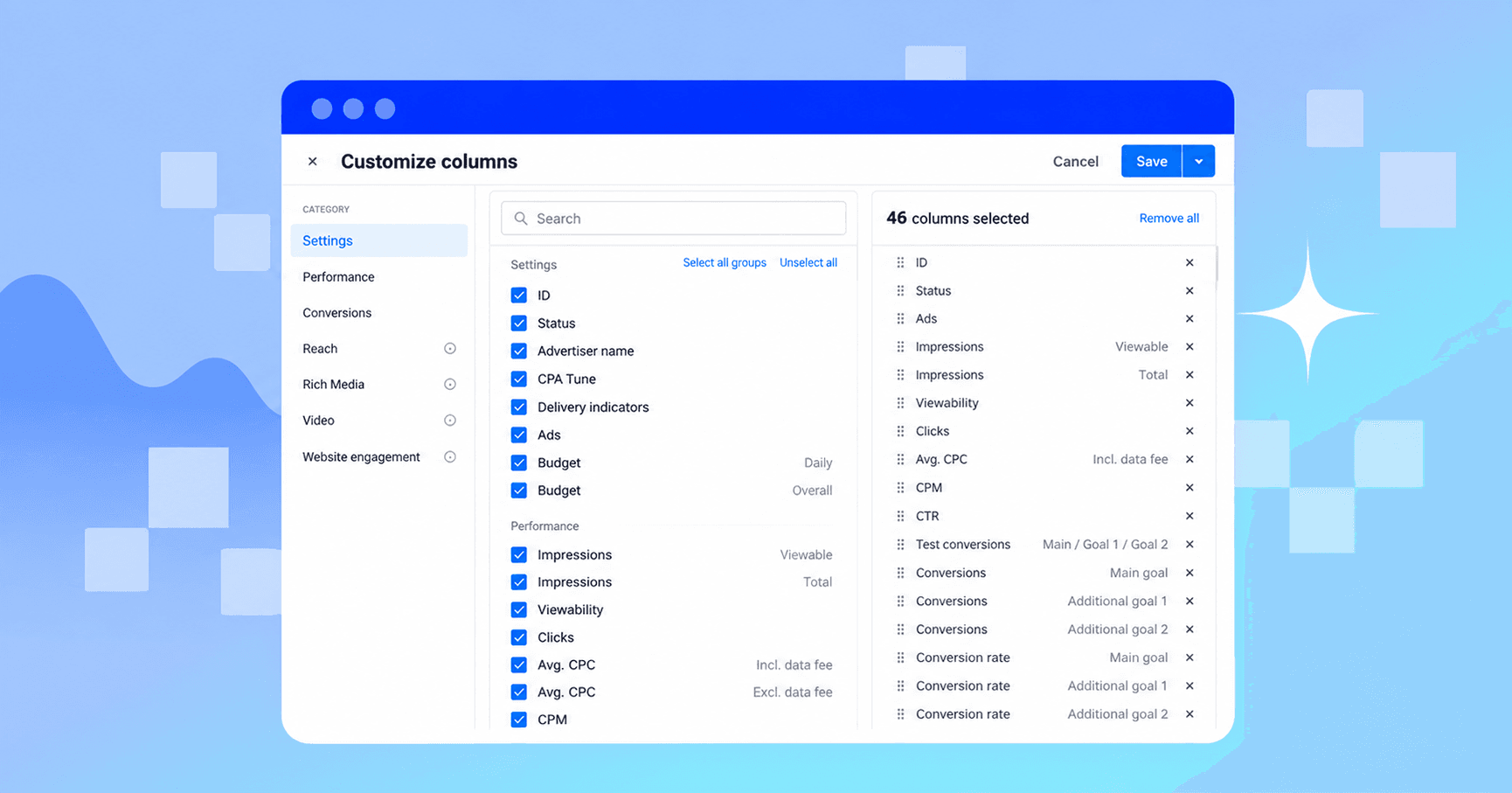
This update introduces three key improvements:
- Metrics are now grouped into categories, making them easier to locate and understand.
- The selector has been redesigned for faster navigation and cleaner column management.
- You can now save custom presets and switch between them with one click.
Find Metrics Faster with Categories
Previously, metrics appeared as a flat list. Now they're grouped into logical categories based on what they measure:
- Settings
- Performance
- Conversions
- Reach
- Rich Media
- Video
- Website engagement
Instead of scrolling through a flat list, you can navigate straight to the category you need or use the built-in search to find a specific metric by name.
A Cleaner Way to Manage Columns
The Customize Columns panel now has three clearly defined areas:
- Categories for browsing metric groups;
- Metric library for searching and selecting within a category;
- Selected metrics panel where you review active columns and can reorder them by dragging or removing what you don't need.
The order in the Selected Metrics panel directly determines the column order in your table.
Save and Switch Between Presets
Another major improvement is the introduction of custom metric presets. Instead of one fixed column setup per page, you can now create multiple named presets and switch between them instantly.
Here's how it works in practice. Say you manage campaigns and regularly need to look at performance from different angles.
- For daily optimization, you may want to focus on Clicks, CPC, Conversions and CPA.
- For traffic quality reviews, you might need Impressions, Viewability and CTR.
- For monthly client reporting, you may prefer a broader view that includes Spend, Revenue, Conversions and ROAS.
With custom presets, you can save each of these metric combinations and switch between them whenever needed. This makes it easier to move between optimization, reporting and performance review workflows without disrupting your analysis. There is no need for rebuilding columns or hunting for metrics, just pick the view you need and get to work.
Note: Presets are stored separately for each interface, allowing you to create metric views tailored to Campaign Statistics, Sources Optimization, Ads and other areas of the platform.
How Presets Work
Creating and managing presets is straightforward. Open Customize Columns, configure the metrics you need and save your setup as a named preset. From that point on, it's available on the page’s dropdown menu whenever you need it.
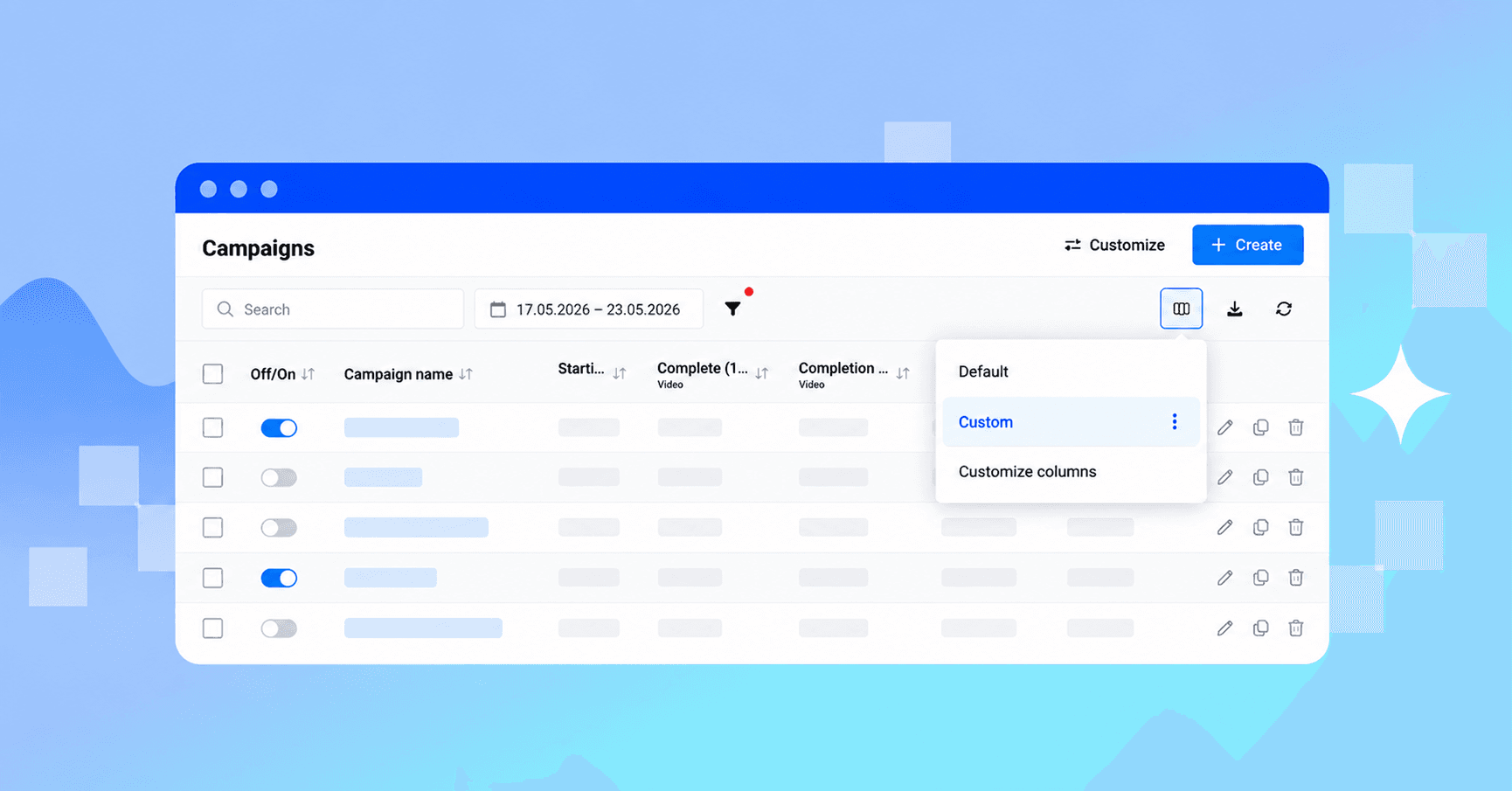
A few things to keep in mind:
- Presets are configured per interface; therefore, what you set up in Sources Optimization stays there and doesn't affect other pages.
- Every interface has a built-in Default preset that you can always fall back to, and it can't be accidentally renamed or deleted.
- You can have up to 10 presets per interface, including the Default preset.
- Custom presets can be renamed, updated or deleted at any time.
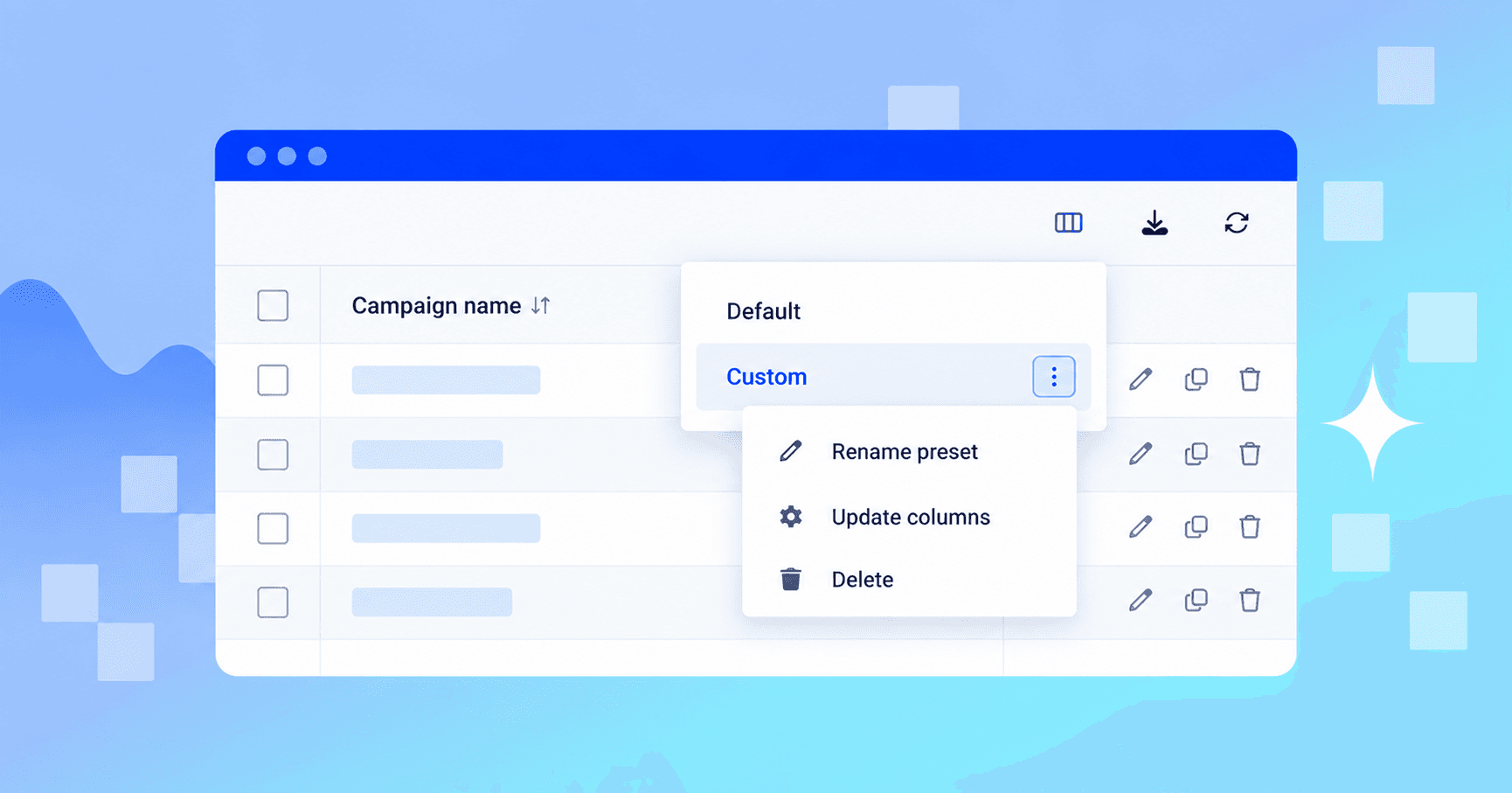
Try It Today
The updated metric selector is live across all supported MGID Ads interfaces. Open any table, click Customize Columns and create your first custom preset to build metric views tailored to your workflow.
Want to explore all available metrics and preset options? Visit the Help Center for a complete walkthrough of the Metric Presets feature.