Passwords alone aren’t enough to keep accounts secure. 2FA adds an extra layer of protection, but some methods are much stronger than others.
Many online accounts still rely on passwords as their primary protection. According to industry reports, a large share of security breaches are linked to weak, stolen or reused passwords. Once a password leaks, attackers can try it on hundreds of other services, often without the user even noticing.
Two-factor authentication (2FA) adds a second layer of protection. Even if someone gets your password, they still need a second form of verification.
It’s one of the simplest and most effective ways to secure your accounts, yet many people either don’t use it or choose weaker methods that can still be bypassed.
What Is Two-Factor Authentication?
Instead of relying on just one factor (a password), you also need another one, such as your phone or a physical security key.
For example, you enter your password and then a code from your phone. You get access only after both steps are complete.
The Three Pillars of Authentication
To be considered true 2FA, the two factors must come from different categories:
| Factor type | What it means | Examples |
|---|---|---|
| Something you know | Information you remember | Password, PIN |
| Something you have | A device you own | Phone, security key, authenticator app |
| Something you are | Your physical identity | Fingerprint, Face ID |
A password and a security question (e.g., "Your pet's name") are not 2FA because they both fall under information you know.
2FA vs. MFA (Quick Clarification)
You’ll often see these terms:
- 2FA (two-factor authentication) → exactly 2 factors
- MFA (multi-factor authentication) → 2 or more factors
All 2FA is MFA, but MFA can use more than two factors.
How Two-Factor Authentication Works
The process adds one simple but powerful step to your login flow.
- Login: You enter your username and password.
- Verification: The service requests a second factor (e.g., a 6-digit code or a push notification).
- Validation: You provide the code or approve the request on your secondary device.
- Access: The system grants entry.
Authenticator apps commonly use TOTP (Time-based One-Time Passwords). These codes expire after a short period, typically 30–60 seconds, so an old code can’t be reused later.
For example, let’s say someone gets your password from a data leak. Without 2FA, they can log in and get instant access. With 2FA, the system asks for a second form of verification. Without it, access is denied.
Why Passwords Are No Longer Enough
Even a strong password can be compromised in ways that have little to do with how difficult it is to guess:
- Data breaches: Services get hacked constantly. When one site leaks your password, hackers try it on hundreds of other sites (credential stuffing).
- Phishing: Sophisticated fake emails or websites can trick even tech-savvy users into typing in their credentials.
- Automated attacks: Bots can try thousands of combinations in seconds.
Types of 2FA and Which Ones Are Actually Secure
Not all 2FA methods offer the same level of protection. Some are much harder to bypass than others.
Most Secure 2FA Methods
These are the most secure and should be your first choice when available.
- Authenticator apps (Google Authenticator, Authy): Generate time-based codes directly on your device. They work offline and are hard to intercept.
- Hardware security keys (like YubiKey): Physical devices you plug in or tap. They are extremely resistant to phishing.
- Passkeys: A newer, phishing-resistant way to sign in using your device, typically protected by biometrics or a PIN. Unlike traditional 2FA, passkeys can replace the password itself.
For most people, authenticator apps are the easiest and most practical option. If you want the highest level of security, hardware keys or passkeys are the better choice.
Good but Not Perfect 2FA Methods
These are convenient and widely used; however, they do have some risks.
- Push notifications: You approve a login with one tap. It is easy to use, but can be abused with repeated requests (so-called “push fatigue”).
- Biometrics (Face ID, fingerprint): This method is fast and user-friendly, but typically used as part of a broader authentication method rather than as a standalone 2FA method.
Weaker 2FA Methods
These options are widely used, but they offer lower security and should only be a fallback if stronger methods aren’t available.
- SMS codes: These are common and easy to use, but they can be vulnerable to SIM-swapping attacks and interception.
- Email codes: Security depends heavily on how well your email account is protected. If your email is compromised, attackers may also gain access to accounts that rely on it for verification.
| Method | Security level | Main risk |
|---|---|---|
| Hardware keys | Very high | Can be lost |
| Authenticator apps | High | Device access |
| Push notifications | Moderate to high | Approval fatigue attacks |
| SMS codes | Moderate | SIM swap |
| Email codes | Depends on email security | Email compromise |
2FA Best Practices: How to Use It the Right Way
Enabling 2FA is a great first step, but using it correctly is what keeps your account safe. Here are the most important things to get right.
1. Use the Strongest Method Available
If you have a choice, prefer an authenticator app over SMS or email codes. For sensitive accounts, hardware security keys or passkeys provide even stronger protection.
2. Always Save Your Backup Codes
When you enable 2FA, most services give you backup (recovery) codes. Don’t ignore them. Store them somewhere safe: offline (printed or written down) or in a secure password manager. They can help you regain access if you lose your primary 2FA device.
3. Protect Your Email First
Your email is often the gateway to other accounts. If someone gets access to it, they may be able to reset passwords or intercept account recovery and verification messages. That’s why securing your email with 2FA should be a priority.
4. Never Approve Unexpected Requests
If you get a login prompt, code or push notification you didn’t request, don’t approve it. This could mean that someone is trying to access your account or your password has already been compromised.
5. Use Unique Passwords Even With 2FA
2FA is powerful, but it’s not a magic fix. If you reuse passwords across multiple sites, one breach can still create problems. Combine 2FA with strong, unique passwords for stronger protection.
6. Add a Backup Method if Possible
Many services let you add a second device or an alternative recovery method. Setting one up in advance can help you avoid getting locked out if your primary method becomes unavailable.
2FA works best when you treat it as part of a system. Strong method + backup access + good habits = real protection.
How does your current setup compare? Check it below.
What to Do If You Lose Access to 2FA
You can lose access to your 2FA method if you lose your phone or reset your device. The important thing is to recover access safely without compromising your account.
The Most Common Recovery Options
Depending on the service, recovery options may include:
- Backup codes: Generated when you enabled 2FA
- Secondary device or method: Another phone or app
- Recovery email or phone number: Used to regain access
- Support verification: Manual identity check
This is why setting up backups in advance is so important.
If You Still Have Your Backup Codes
- Use one of your backup codes to log in.
- Go to security settings.
- Set up 2FA again on your new device.
If You Lost Everything (No Codes, No Device)
Recovery becomes more difficult and depends on the service. You may need to:
- Request account recovery.
- Complete the service’s identity verification process.
- Wait for support to review your request.
This process can take time, and recovery may not always be possible.
How to Avoid Getting Locked Out
A few simple steps can save you a lot of trouble:
- save backup codes in a safe place;
- add a secondary 2FA method if available;
- keep your recovery email up to date.
2FA in MGID: Protecting Your Campaigns and Funds
To see how 2FA works in practice, let’s look at how it’s implemented in MGID.
The idea stays the same: access to your account requires not only a password but also a secondary verification step. For MGID, this is a one-time code (OTP) sent to your email address. This means that having your password alone isn’t enough to access your MGID account — the verification code is also required.
Because the verification code is sent by email, the security of your MGID account also depends on the security of your email account. Protecting your email with a strong, unique password and 2FA adds an important layer of protection.
Why This Matters for MGID Users
For accounts connected to advertising and payments, the stakes are higher.
If you use MGID to manage campaigns, monetize traffic or handle funds, your account is directly tied to financial activity and sensitive data.
What Protection You Get
Enabling 2FA in MGID helps:
- reduce the risk of unauthorized access if your password is leaked or reused;
- add another verification step before account access is granted;
- provide additional protection for campaign data and financial activity.
How to Enable 2FA in MGID
You can enable 2FA in just a few steps from your dashboard.
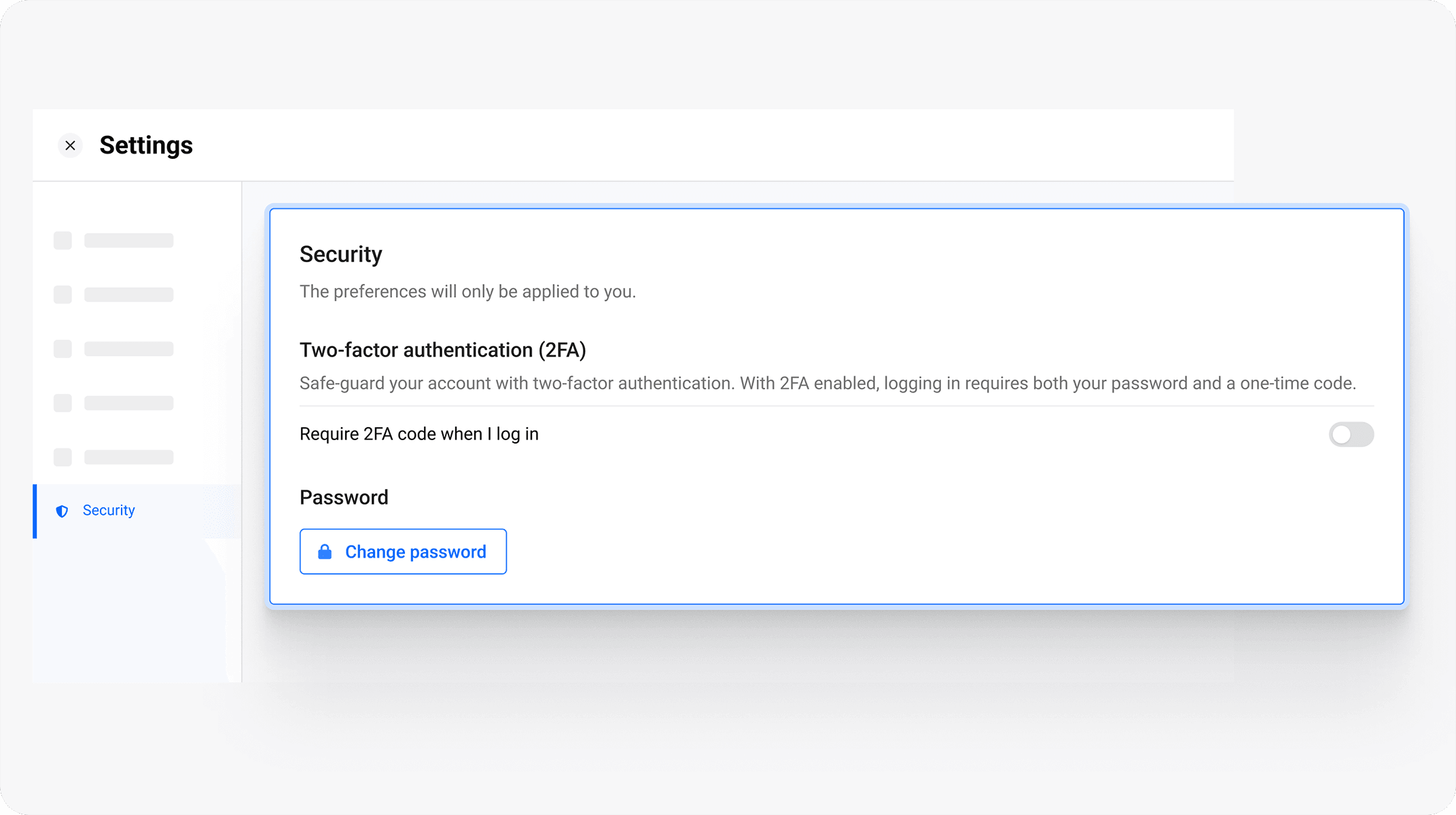
Once enabled, every login will require both your password and a verification code sent to your email.
If You Receive a Code You Didn’t Request
If this happens:
- Change your password immediately (use a strong, unique one).
- Check your email account for suspicious activity and make sure it is properly secured.
- Never share the code with anyone.
- Contact MGID support if anything looks suspicious.
Conclusion
Passwords alone are no longer enough to protect your accounts. They can be leaked, reused or stolen, often without your knowledge.
Two-factor authentication adds a second layer that makes it much harder to access your account with a stolen password alone. It doesn’t make you invulnerable, but it significantly improves account security.
The key is to use it right: choose a stronger method when possible, secure your email account and set up backup access.
If you haven’t enabled 2FA yet, it’s one of the simplest and most effective ways to strengthen your online security.